
How to capture quantitative western blot and gel images

A gel or western blot image is quantitative when every band you measure sits inside the linear range of both the chemistry and the imager. In practice that means capturing in grayscale at 12 or 16 bits, choosing an exposure where no band you need to measure has saturated pixels, loading an amount of protein that a serial dilution has shown to be in the linear range, using enough resolution that each band covers many pixels, saving the raw file without compression, and keeping every setting the same for every image in the study. Get those right at the imager and the analysis software can measure what is really there; get them wrong and no software can recover the lost data.
This guide explains each of those decisions for western blots and 1D gels (SDS-PAGE, native and nucleic acid gels), with a 12-point checklist you can copy into your SOP. For 2D gels, see imaging 2D gels. For what you can edit and how to present the final figure, see western blot and SDS-PAGE images: capture, edit and present.
On this page
- The 12-point quantitative imaging checklist
- The image is numbers, not a picture
- Bit depth: why 16-bit matters
- Linear range: the two kinds of saturation
- Choosing the exposure
- Using the dynamic range you have
- Resolution: how many pixels a band needs
- Grayscale, file formats and contrast stretching
- Consistency across a study
- Choosing an imager
- Checking your images before you analyze them
- Frequently asked questions
The 12-point quantitative imaging checklist
- Capture in grayscale. A color image carries no more intensity levels per channel than an 8-bit grayscale image.
- Use the highest bit depth your imager offers, 16-bit where possible and never less than 12-bit.
- Find the linear range once per assay with a twofold serial dilution of a representative sample, and load every sample inside it.
- Expose for the strongest band you need to measure: the longest exposure at which that band has no saturated pixels.
- Check saturation with software, using the imager’s saturation display or your analysis software’s overlay, not by eye.
- Use the dynamic range: crop to the gel or membrane at capture, and adjust exposure, gain or scanner voltage so the image uses as much of the available range as possible without saturating.
- Use enough resolution that each band covers many pixels. Mini gels need a higher dpi than large gels. Never enlarge an image after capture.
- Keep every setting the same for every gel or blot in a study: instrument, exposure strategy, bit depth, resolution and orientation. Record them.
- For multiplex fluorescence, set each channel separately, then keep each channel’s settings fixed across the study.
- Save the raw image losslessly: the imager’s native format or an uncompressed 16-bit TIFF. Never quantify a JPEG, a screenshot or a slide copy.
- Do not stretch the contrast or apply histogram equalization or auto-levels before analysis.
- Do crop, rotation and flipping in the analysis software, and always quantify the raw image, never an edited figure.
The image is numbers, not a picture
A digital gel or blot image is a grid of numbers, one per pixel, each recording how much light the detector collected from that point. The picture on screen is only a rendering of those numbers: a typical monitor shows about 256 shades of gray, so two images can look identical on screen and hold very different values, and two images that look different can hold the same values (ref 1). Densitometry measures the numbers, which is why every decision at the imager is really a decision about how many of those numbers are kept and whether they are still proportional to the amount of protein or nucleic acid in each band.
Bit depth: why 16-bit matters
Bit depth sets how many intensity levels each pixel can take. Each extra bit doubles the number of levels: an 8-bit image has 256, a 10-bit image 1,024, a 12-bit image 4,096 and a 16-bit image 65,536.
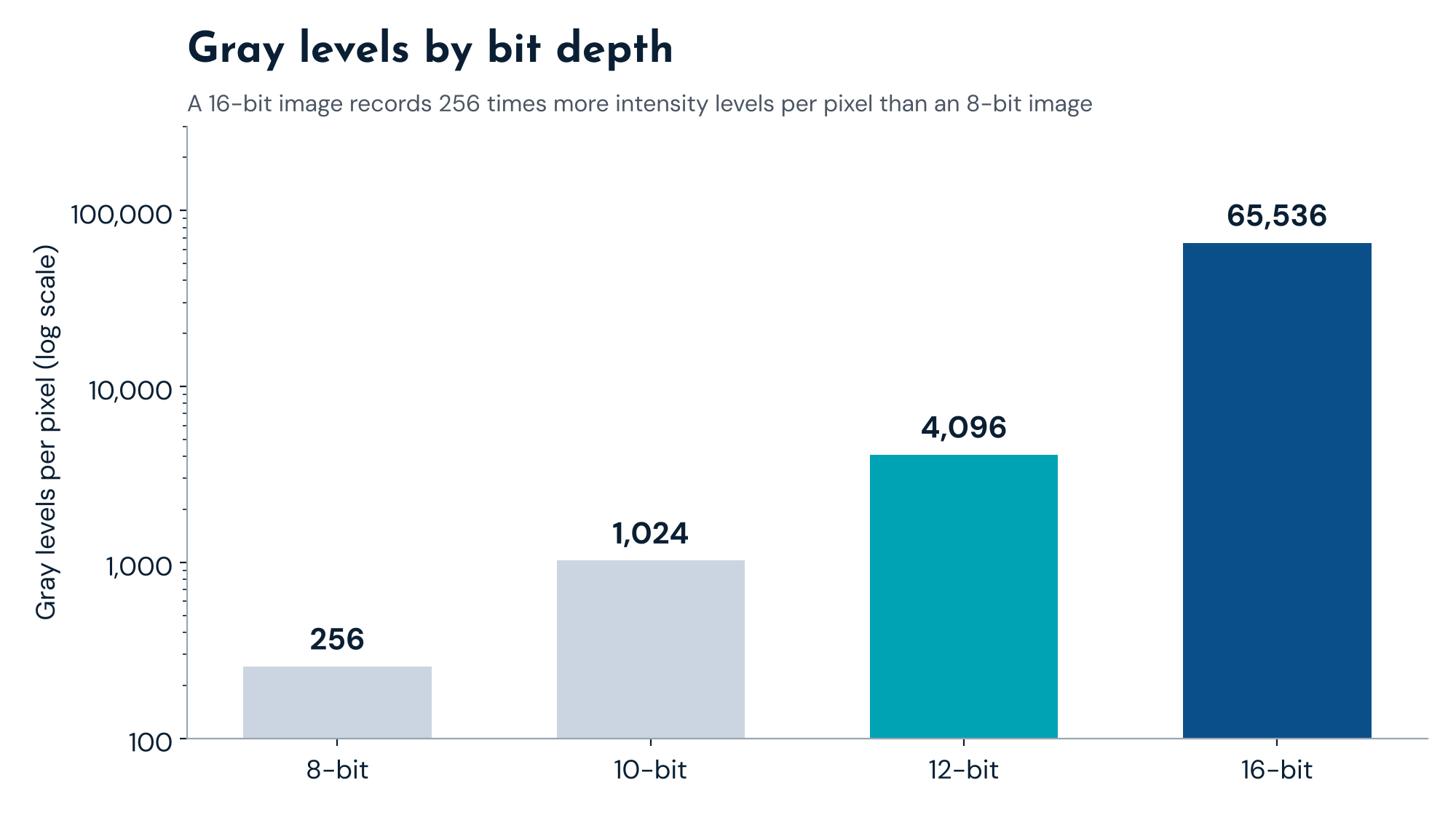
More levels means faint bands stand further above the background and small differences between strong bands are kept. In a TotalLab test on the same 2D gel captured at both depths, a faint spot that rose only 9 gray levels above background in the 8-bit image rose 2,062 levels above background in the 16-bit image, and spots that the 8-bit image missed altogether were detected at 16 bits (ref 2). On screen, an 8-bit image looks identical to a 16-bit one.
Recommendation: capture and analyze at 16 bits. Watch for silent conversions: some viewers and editors save a 16-bit file as 8-bit, so check the bit depth of the file you are about to quantify.
Linear range: the two kinds of saturation
Quantitative densitometry assumes that band intensity, after background subtraction, is directly proportional to the amount of target in the band. A plot of band volume against amount loaded should be a straight line through zero; a line with a nonzero intercept points to a background subtraction problem, and a curve that flattens points to saturation (ref 3). That flattening has two quite different causes, and the fix for each is different.
| Image saturation | Signal saturation | |
|---|---|---|
| Where it happens | At the detector, when the image is captured | On the gel or membrane, before imaging |
| Cause | Exposure, gain or scanner voltage too high for the brightest band | Too much protein; epitope crowding; quenched fluorescent labels; oxidized enzyme-conjugated antibodies |
| What you see | Pixels at the maximum value (65,535 at 16 bits); flat-topped band profile | Band volume stops rising in proportion to load, with no maxed-out pixels |
| Caught by the saturation display? | Yes | No; only a serial dilution shows it |
| Fix | Shorter exposure, lower gain or lower voltage | Load less protein, inside the linear range found by serial dilution |
Image saturation and signal saturation: where each happens, how to spot it and how to fix it.
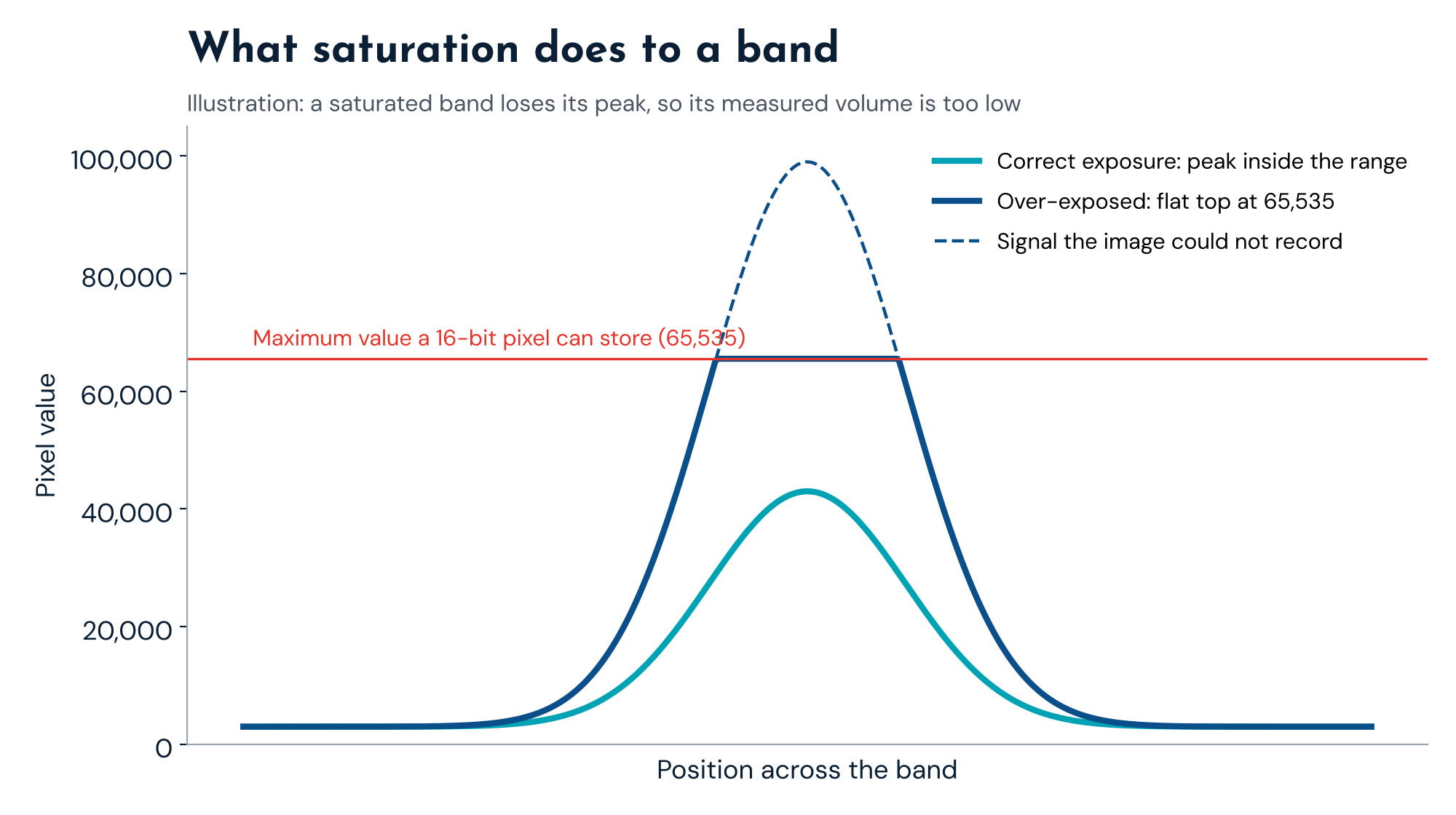
Image saturation happens at the detector. Once a pixel reaches the highest value the image can store (65,535 in a 16-bit image), any extra signal is lost, the band’s profile gets a flat top and its measured volume is too low. A shorter exposure, lower gain or lower scanner voltage fixes it.
Signal saturation happens on the gel or membrane, before the imager. Above a certain load the band simply stops getting brighter in proportion to the protein: there is more protein than the gel or membrane can resolve and hold, antibody epitopes crowd each other, fluorescently labeled secondary antibodies quench, or enzyme-conjugated secondary antibodies oxidize (refs 3, 4). The pixels may be well below the maximum, so the imager’s saturation warning will not catch it. Only a serial dilution shows where it starts. Janes found, for example, that tubulin and Hsp90 saturated with less than 25 µg of total protein, while actin and p38 stayed linear up to 50 µg (ref 3). Loading controls are especially prone to this, because they are abundant; in a Bio-Rad study by Taylor and colleagues, GAPDH needed a load of no more than about 0.5 µg of total protein to stay quantifiable (ref 4).
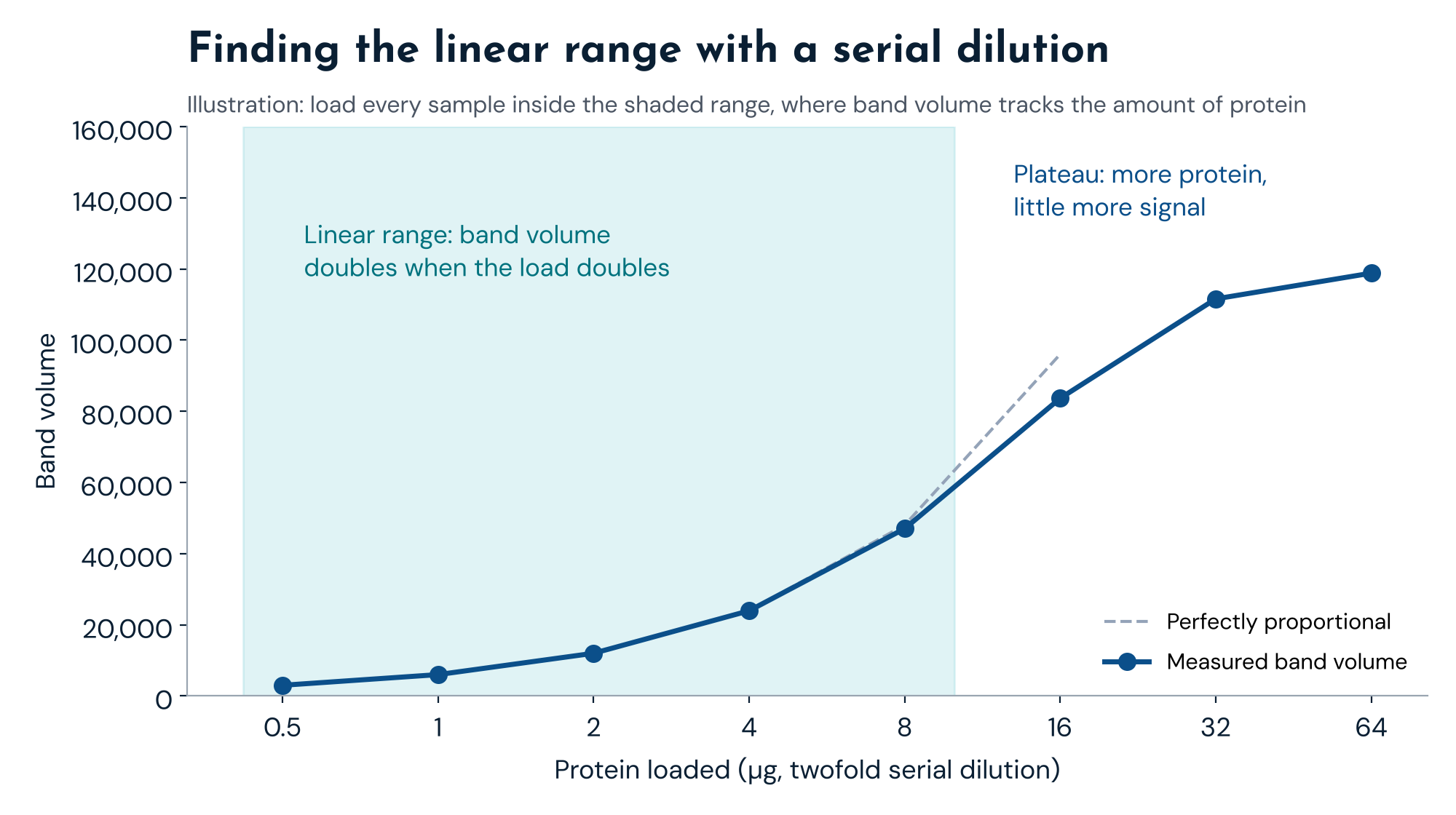
Recommendation: once for each assay, run a twofold serial dilution of a representative sample (Taylor and colleagues recommend 12 twofold dilutions starting from about 80 µg of lysate pooled from samples across the experimental conditions, ref 4), image it with your normal protocol, plot band volume against load, and use only the straight part of the curve. Do this for the target and for whatever you normalize to, then choose a load that keeps both inside their linear ranges. The total protein normalization guide explains why a total protein stain usually stays linear over a wider range than a single housekeeping protein.
Choosing the exposure
For chemiluminescent and fluorescent blots imaged on a camera system, exposure time is the main control. Too short, and faint bands sink into the noise; too long, and the strongest bands saturate. The target is the longest exposure at which the strongest band you need to measure still has no saturated pixels, which fills as much of the bit depth as possible (ref 3).
- Take a short series of exposures and pick the longest unsaturated one for the bands you will measure, rather than accepting the first image that looks good.
- Treat auto-exposure with care. It may be tuned to give an attractive image rather than to stop just below saturation, so check its result with the saturation display.
- If the target and the loading control are very different in intensity, consider imaging them separately or in separate fluorescence channels, each at its own unsaturated exposure, and record which exposure was used for which band.
- For film, the usable range is much narrower. Taylor and colleagues at Bio-Rad reported that, on the same blot, film was linear over four twofold dilutions of a spiked-in protein while a CCD imager was linear over seven, and that film’s background saturated as well (ref 4). Janes avoided film for quantitative work altogether, noting that a saturated film exposure can hide sample-to-sample differences in loading controls (ref 3). If you must quantify film, scan it in transmission mode at 16 bits and confirm the linear range with a dilution series.
Using the dynamic range you have
The dynamic range of an image is the span of gray levels it actually uses, as distinct from the span it could hold. A 16-bit image can hold 65,536 levels; a well-exposed one might use two-thirds of them, a poorly exposed one a tenth. In TotalLab’s example images, a good capture used 67% of the available range and a poor one only 12% (ref 2). The histogram in your capture software shows this at a glance: data bunched at the low end means wasted range, and a spike at the very top means saturation.
- Crop at capture. Image only the gel or membrane. Empty scanner bed, labels and rulers add nothing, can take up range and distort the image statistics, and make files larger (ref 2).
- Adjust the instrument, not the image. On a camera system, change exposure time; on a laser scanner, adjust the photomultiplier voltage or gain. Consult the instrument documentation for the controls your system offers.
- Do not chase range by changing settings between images in the same study. Optimize once on a representative image, then keep the settings fixed.
Resolution: how many pixels a band needs
Resolution sets how many pixels describe each band. Too few, and neighboring bands share pixels, band edges are uncertain and small bands are measured badly. Beyond a certain point, extra resolution only records the noise more precisely and multiplies file size: every doubling of resolution quadruples the number of pixels (ref 2).
| Scan resolution | Pixel size | Pixels across an 8 cm mini gel | Pixels across a 20 cm gel | Pixels across a 5 mm lane | Pixels across a 1 mm band | 16-bit file size, 8 x 7 cm gel |
|---|---|---|---|---|---|---|
| 100 dpi | 254 µm | 315 | 787 | 20 | 4 | 0.2 MB |
| 200 dpi | 127 µm | 630 | 1,575 | 39 | 8 | 0.7 MB |
| 300 dpi | 85 µm | 945 | 2,362 | 59 | 12 | 1.6 MB |
| 600 dpi | 42 µm | 1,890 | 4,724 | 118 | 24 | 6.3 MB |
Pixel size and pixel counts at common scan resolutions. Figures are calculated; file size is for an uncompressed 16-bit image.
TotalLab’s long-standing rule of thumb is that the part of the gel holding the bands or spots should span roughly 1,000 to 1,800 pixels in each direction (ref 2). In most situations about 300 dpi is enough; a mini gel, whose band area is only a few centimeters across, may need up to 600 dpi to reach the same pixel count. Whatever you choose, use the same resolution for every image in a study.
Never enlarge an image after capture. Upsampling makes software invent pixels between the real ones; it adds no information and can create artifacts (refs 2, 5).
Grayscale, file formats and contrast stretching
Grayscale, not color. A 24-bit color image is three 8-bit channels. When analysis software converts it to grayscale, the result is an 8-bit image built from a weighted mix of the channels, which may not match how your imager would have converted the light. Let the imager capture in grayscale at its full bit depth (ref 2).
Lossless files only. Keep the imager’s native file, which often carries calibration information, or export an uncompressed 16-bit TIFF. JPEG compression is lossy: it smooths and averages pixels, and converting the JPEG back to TIFF does not restore them (ref 2). Screenshots and slide copies record the displayed image rather than the original pixel values. All three are fine for showing a blot and wrong for measuring one.
No contrast stretching. Some capture software can stretch the histogram or apply equalization so the image looks punchier. That does not add information: an image with 100 distinct intensity levels stretched across a 400-level range still has only 100 distinct levels, now with gaps between them (ref 2). Turn these options off, and leave brightness and contrast for display only, after quantification. Journals take the same view of figures: any adjustment must keep the image an accurate representation of the original data (ref 5).
Consistency across a study
Comparisons between gels or blots are only as good as the consistency of the imaging. For every image in a study:
- use the same instrument, bit depth, resolution and capture mode,
- use the same exposure strategy (for example, the longest unsaturated exposure for the target band), and record the actual exposure used for each image,
- image in the same orientation, so lanes run the same way,
- for multiplex fluorescence, set each channel’s exposure or voltage separately, then hold each channel fixed,
- keep the raw files and the settings together, so the analysis can be repeated and a reviewer’s request for raw data is easy to meet (ref 4).
Write these settings into your SOP. They are as much a part of the method as the antibody dilution.
Choosing an imager
Three kinds of instrument are used for gels and blots, and each suits different detection chemistry (ref 2).
- Cooled CCD or CMOS camera systems capture the whole gel or membrane at once. They are the usual choice for chemiluminescent western blots, and with suitable illumination and filters also image fluorescent and visible stains. Cooled CCD cameras made it possible to determine the saturation point precisely and gave a much wider linear range than film (ref 4).
- Laser and fluorescence scanners scan point by point with photomultiplier detection. They suit fluorescent stains and multiplex fluorescent western blots, and many also image visible stains and storage phosphor screens.
- Flatbed scanners and densitometers image visible stains such as Coomassie and silver, and film. Use transmission mode, grayscale and the highest bit depth available; office scanners set up for documents often save 8-bit or JPEG files by default.
The analysis software should not limit your choice. Phoretix 1D reads 8-bit, 16-bit and higher uncompressed TIFF, including multi-page and multichannel TIFF, as well as IMG files, from any imager (ref 6). It also opens Bio-Rad .scn files natively.
Checking your images before you analyze them
Most imaging problems can be caught before they cost an afternoon of analysis.
- Saturation. Phoretix 1D highlights saturated areas of the image in orange, so you can see which bands cannot be measured before you measure them (ref 7). For 2D gels, SameSpots checks every image on import for bit depth, saturation, resolution and file size consistency across the experiment (ref 8).
- Bit depth and format. Confirm the file is the 16-bit raw image, not an 8-bit export.
- Linearity. Open the serial dilution for the assay alongside the study images and confirm your loads sit inside its linear range.
- Background. Choose a background subtraction method suited to the image and apply it consistently; the background subtraction guide compares the options.
From there, the western blot densitometry guide covers measuring band volumes, normalizing and reporting the result.
Check your next blot before you quantify it
Open one of your own 16-bit images in a free Phoretix 1D trial: see at a glance which bands are saturated, detect lanes and bands automatically and measure them with the background method and normalization your SOP sets.
Frequently asked questions
What is the linear range of a western blot?
It is the range of protein loads over which band intensity, after background subtraction, rises in direct proportion to the amount of target. It depends on the protein, the antibody, the detection chemistry and the imager, so it has to be measured for each assay, usually with a twofold serial dilution of a representative sample.
How do I know if my western blot image is saturated?
Use the saturation display in your imager software or analysis software, which marks pixels at the maximum value. A saturated band also has a flat-topped intensity profile. A band can also be saturated on the membrane without any saturated pixels; only a serial dilution shows that.
What exposure time should I use for a chemiluminescent western blot?
The longest exposure at which the strongest band you need to measure still has no saturated pixels. Take a short series of exposures and choose that one, rather than relying on auto-exposure.
Should western blot images be 8-bit or 16-bit?
16-bit. A 16-bit image records 65,536 gray levels per pixel against 256 for an 8-bit image, so faint bands and small differences between strong bands are kept. Quantify the 16-bit file, not an 8-bit copy.
What resolution should I scan a gel at?
Enough that the area holding the bands spans roughly 1,000 to 1,800 pixels in each direction: about 300 dpi for most gels and up to 600 dpi for a mini gel. Use the same resolution for every image in a study and never enlarge an image afterward.
Can I quantify a JPEG image of a gel or blot?
No. JPEG compression changes pixel values, and converting back to TIFF does not restore them. Quantify the imager’s native file or an uncompressed 16-bit TIFF.
Is film quantitative for western blots?
Only over a narrow range. In one comparison of the same blot, film was linear over four twofold dilutions of protein against seven for a CCD imager. For quantitative work, a digital imager is the better choice.
Can I adjust brightness and contrast before quantifying?
No. Brightness, contrast, stretching and equalization change the pixel values densitometry measures. Quantify the raw image and adjust only the displayed figure afterward, applying any change to the whole image.
References
- Russ JC. Seeing the scientific image, parts 1 to 3. Proceedings of the Royal Microscopical Society. 2004;39(2), 39(3), 39(4).
(Source for: displayed image versus pixel values; images that look the same holding different values.) - TotalLab. Gel imaging capture and image analysis guide, and image capture best practice guide. totallab.com, 2018 to 2019 (archived).
(Source for: 8-bit versus 16-bit test, 9 versus 2,062 gray levels above background; 67% versus 12% of the dynamic range; cropping at capture; resolution guidance including 1,000 to 1,800 pixels and quadrupling of data; upsampling; grayscale conversion; JPEG loss; contrast stretching example; imager types.) - Janes KA. An analysis of critical factors for quantitative immunoblotting. Sci Signal. 2015;8(371):rs2. doi:10.1126/scisignal.2005966
(Source for: zero-intercept linearity; nonlinearity indicating saturation; serial dilution to assess dynamic range; causes of signal saturation; tubulin and Hsp90 saturating below 25 µg, actin and p38 linear to 50 µg; exposure set to fill the bit depth without saturated pixels; film avoided for quantification; saturated film hiding loading-control differences.) - Taylor SC, Berkelman T, Yadav G, Hammond M. A defined methodology for reliable quantification of Western blot data. Mol Biotechnol. 2013;55(3):217-26. doi:10.1007/s12033-013-9672-6
(Source for: film linear over four twofold dilutions against seven for a CCD imager on the same blot; recommended 12-dilution standard curve from about 80 µg of pooled lysate; loads inside the linear range of both target and loading control; film background saturation; plateau from protein saturation in the gel and blot; GAPDH load of about 0.5 µg; cooled CCD saturation point and wider dynamic range; editors requesting raw data.) - Rossner M, Yamada KM. What’s in a picture? The temptation of image manipulation. J Cell Biol. 2004;166(1):11-5. doi:10.1083/jcb.200406019
(Source for: adjustments must keep the image an accurate representation of the original; no increase in pixel number.) - TotalLab. Phoretix 1D product page. totallab.com/software/1d-gel-western-blot-analysis-software/
(Source for: file formats and bit depths read by Phoretix 1D.) - TotalLab. “Publication-Quality SDS-PAGE & Western Blot Figures: Direct Export from Phoretix 1D”, YouTube, 11 March 2026, video EBIBoFdYcX4.
(Source for: saturated areas highlighted in orange.) - TotalLab. SameSpots product page. totallab.com/software/2d-gel-analysis-software/
(Source for: image checks on import for bit depth, saturation, resolution and file size consistency.)